
A product badge tells customers which product has a promotion. In Snap Bundle, create your Volume offer, then go to the Settings tab, choose "Change appearance" for Product badge, and set the badge text you want to show.
Making your Volume offer more visible using Product badge feature
Updated last month
A product badge acts as a way to let customers know which product has a promotion. This is a good way to promote your Volume offer and stimulate shopping energy in your customers. In this article, I'll show you how to set up and customize product badges with our app.
Use case:
Add "Bulk price" badge to product "Selling Plans Ski Wax" with discount 10% when buying over 10 items
Step 1: Set up the bulk discount for "Selling Plans Ski Wax"
Create a Volume offer with the following configuration, following the steps in Set up Volume offer:
Tier 1:
Min quantity = 10
Discount type: Percentage
Value = 10%
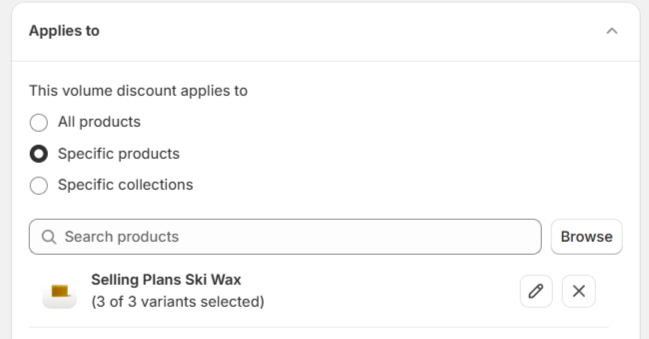
Applies to: Specific product - choose "Selling Plans Ski Wax"
Click "Save"
Step 2: Configure your badge
Go to "Settings" tab in the navigation menu. Choose "Change appearance" for Product badge
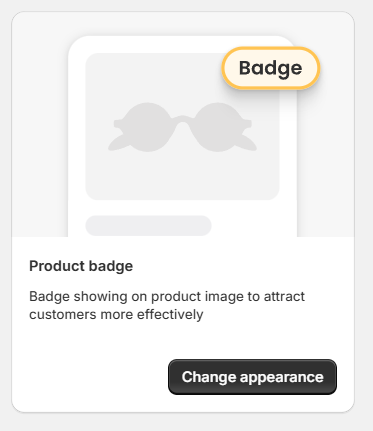
By default the badge is already on
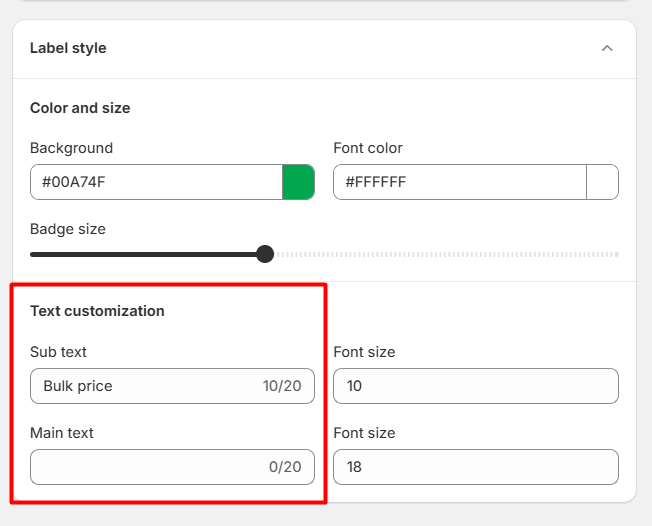
Change badge text to "Bulk price"
Step 3: Hit Save
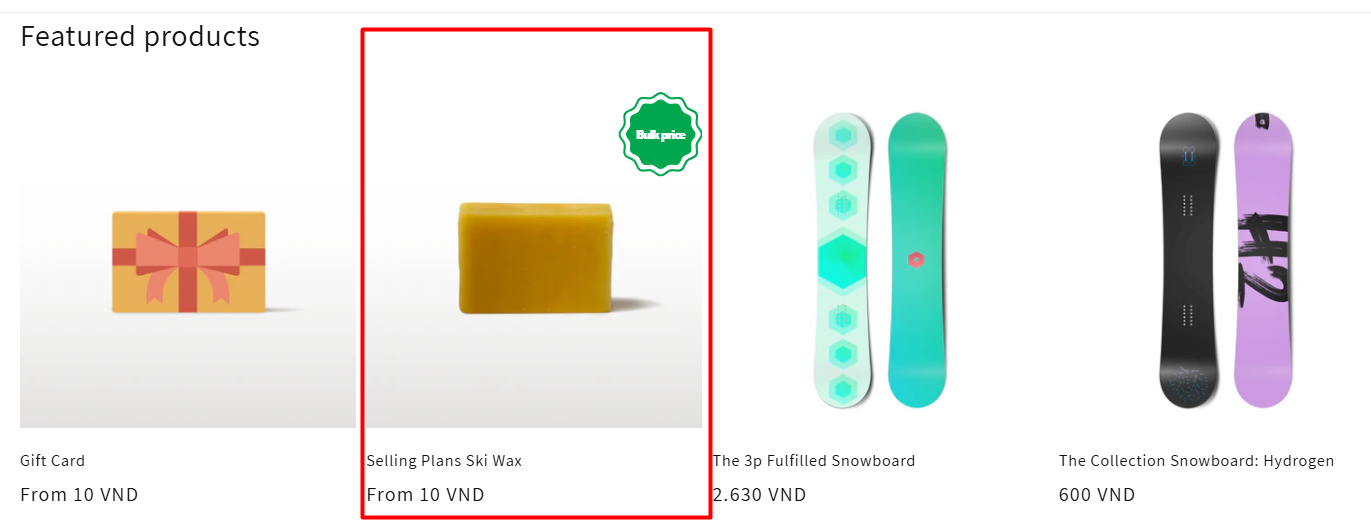
Now the badge will now be displayed on the collection page and production page, on product image. With this feature, your customers can not miss your discount!
Need more help?
If you experience any issues or have questions, please don't hesitate to contact our support team at [email protected] or through our live chat - we're here to assist you!
FAQ
How do I add a product badge to my Volume offer in Snap Bundle?
Where does the Snap Bundle product badge appear on my store?
The badge is displayed on the collection page and the product page, on the product image, so customers can see the discount without missing it.
How do I change the product badge text?
Go to the Settings tab in the navigation menu, choose "Change appearance" for Product badge, and change the badge text. For example, the article's use case sets the badge text to "Bulk price".
Is the product badge enabled by default?
Yes, the badge is on by default, so you only need to change the badge text and save to start showing it.
What does the product badge feature do for my store?
It lets customers know which product has a promotion, which promotes your Volume offer and stimulates shopping energy.
Was this helpful?
Was this helpful?