
A mix-and-match bundle (also called a customizable bundle) lets customers choose their own combination of products from a predefined selection, often while still enjoying a discount or special offer.
Set up Mix-n-match Bundle
Updated last month
This article will guide you on how to set up a Mix-n-match Bundle with SnapBundle.
What is Mix-n-match bundle?
A mix-and-match bundle (or customizable bundle) is a type of product bundle where customers can choose their own combination of products from a predefined selection. Unlike fixed bundles, mix-and-match bundles give customers the flexibility to pick the items they want, often while still enjoying a discount or special offer.
Create a Mix-n-match Bundle
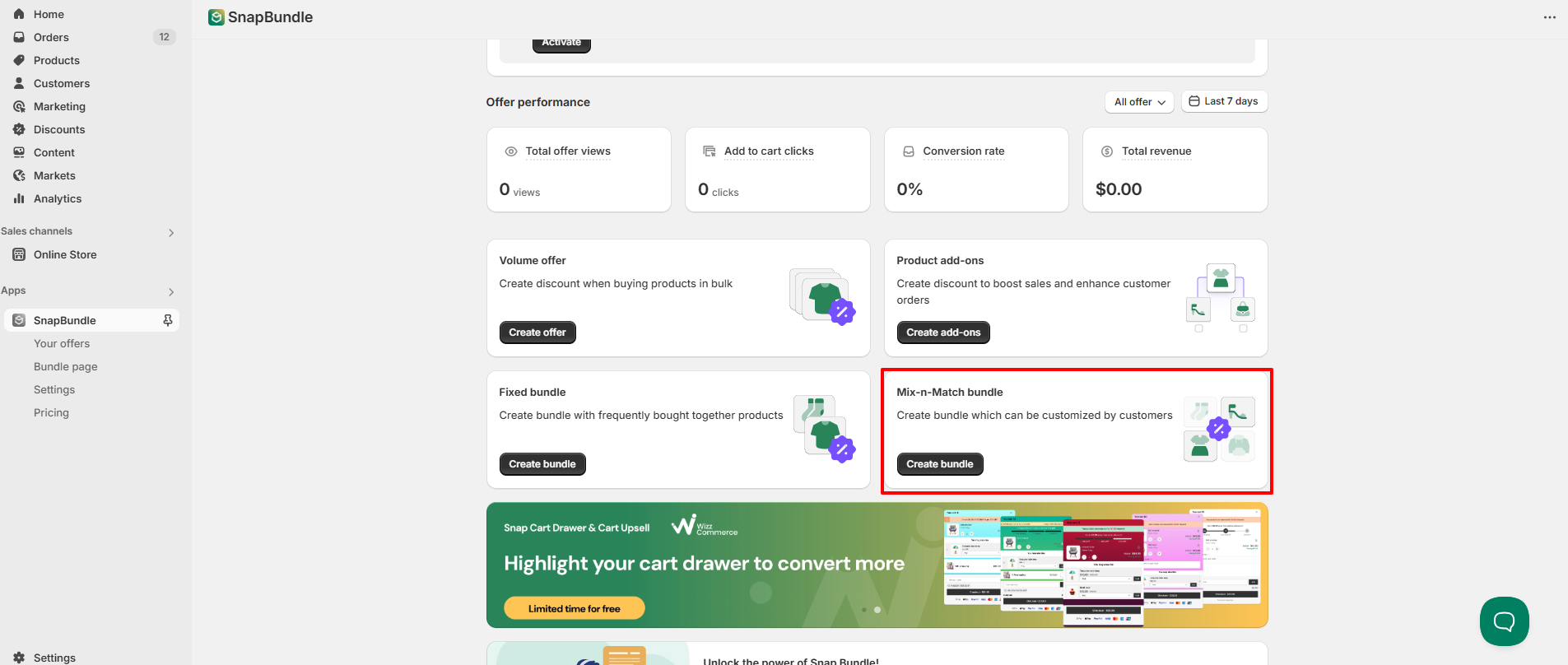
Step 1: From the app dashboard, select Mix-n-match bundle
From the Dashboard of your app admin, choose "Mix-n-match bundle"
Step 2: Set a name for your offer
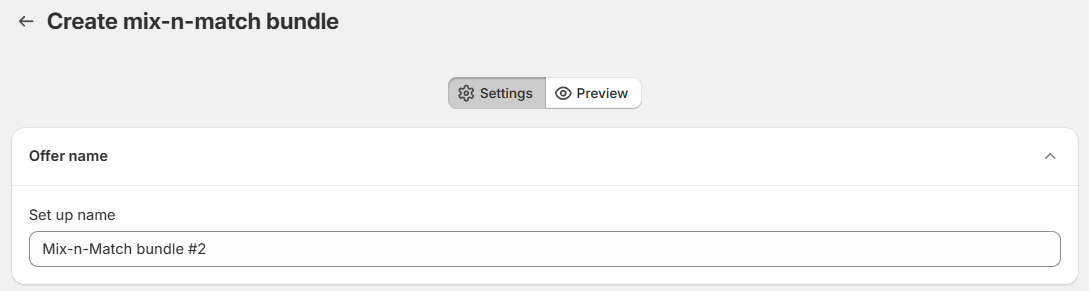
Choose a distinct name for your Mix-n-match bundle. This name is only for internal management and won't be shown to your customers
Step 3: Choose display widget
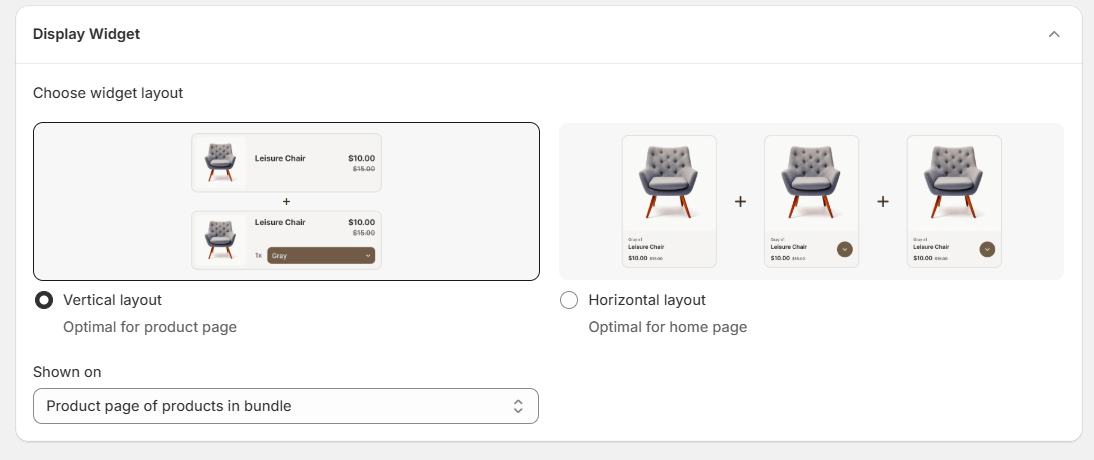
Our app offers 2 widget layouts to fit in different screen and different page of your store. You can choose between Vertical layout or Horizontal layout
The Vertical layout is for your product page only, in the product information section
The Horizontal layout can be shown on both Home page and Product page.
For widgets on product page, you can select if you would like to show the bundle on
Every product page
Or, Product page of bundle products only
Step 4: Select products for your bundle
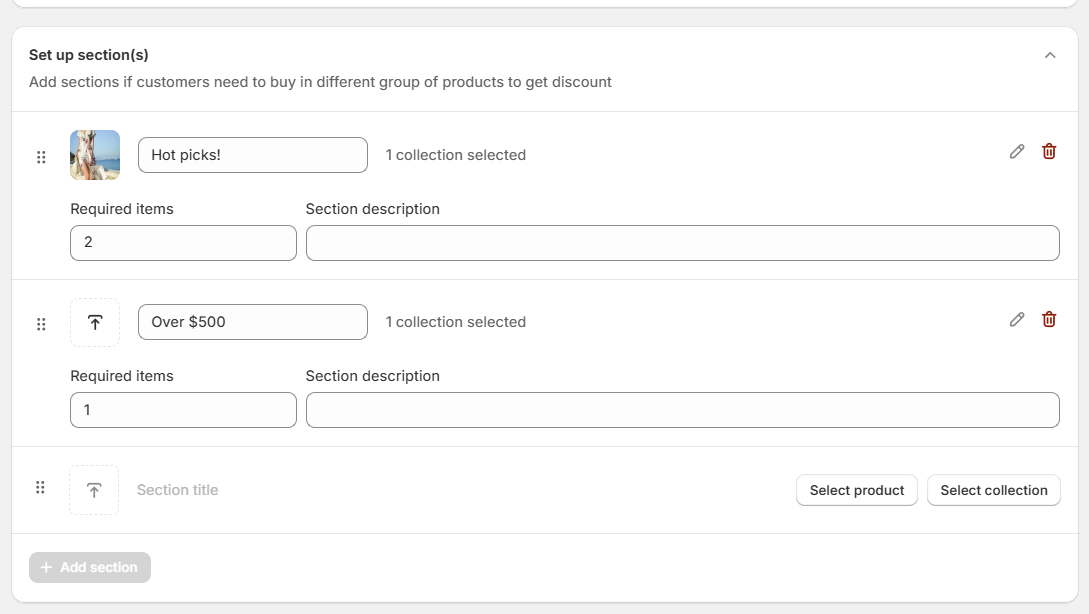
With the customized bundle, you can provide some collections or categories for the customers to select from. You are free to set up:
Section name, image, products
How many items customers have to add for each section
Description (optional)
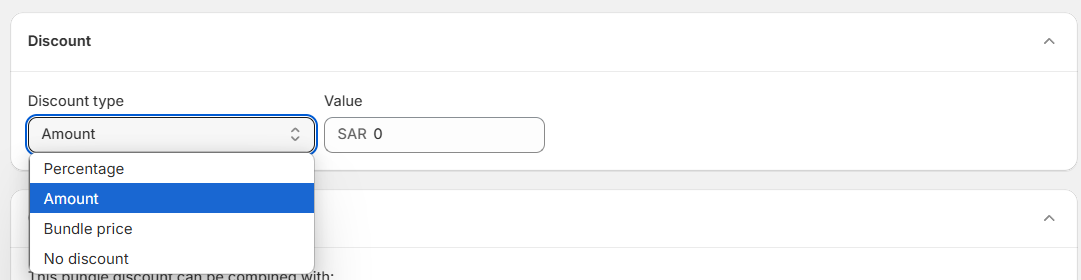
Step 5: Set discount for your bundle
You can make your bundle more attractive with discount. There are 4 options:
Percentage off
Amount of bundle
Bundle price
No discount given
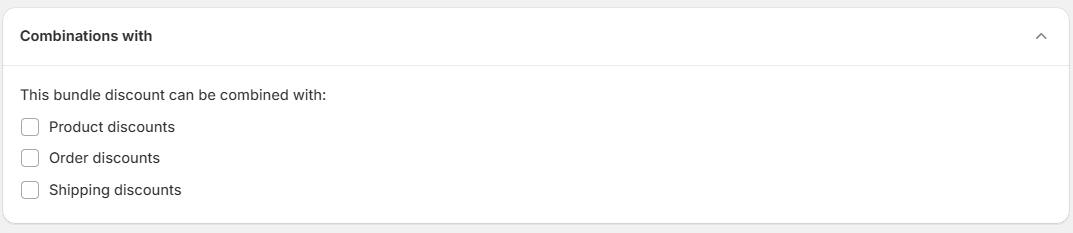
Step 6: Discount combination
The bundle offer can be also combined with Shopify native discounts if you wish.
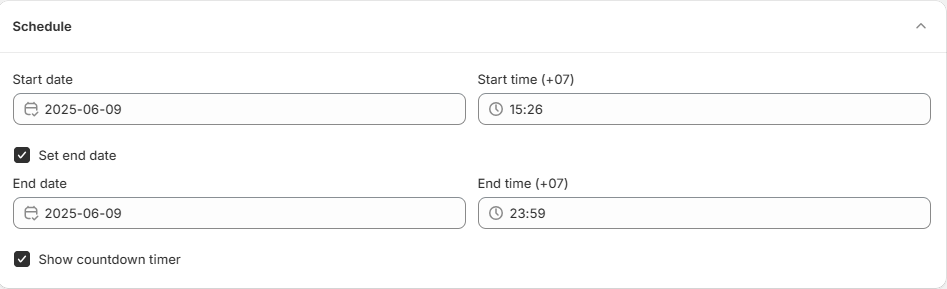
Step 7: Set a start date and end date for your campaign (Optional)
You can set an end date for your campaign in order to show the countdown timer.
Step 8: Save your configuration
After finalizing all settings, click "Save" button on top of the screen to let your offer go live. Make sure your app-embed is on in your theme then review the created bundle on your live store.
Need more help?
If you encounter any issues or have questions, feel free to reach out to our support team via [email protected] or via our live chat - we're happy to help!
FAQ
What is a mix-and-match bundle in Snap Bundle?
How do I create a mix-and-match bundle in Snap Bundle?
From the Snap Bundle dashboard, choose "Mix-n-match bundle", set an internal name for the offer, choose a display widget, select the products and sections, set a discount, decide whether to combine it with Shopify discounts, optionally set a start and end date, then save your configuration to go live.
What display widget layouts does Snap Bundle offer for bundles?
Snap Bundle offers two layouts. The Vertical layout is for your product page only, in the product information section. The Horizontal layout can be shown on both the Home page and the Product page. On product pages, you can show the bundle on every product page or on bundle products' pages only.
What discount options can I set for a mix-and-match bundle?
You can choose between Percentage off, Amount of bundle, Bundle price, or No discount given.
Can a mix-and-match bundle be combined with Shopify discounts?
Yes. The bundle offer can be combined with Shopify native discounts if you wish.
How do I make my mix-and-match bundle go live?
After finalizing all settings, click Save at the top of the screen. Make sure your app-embed is on in your theme, then review the created bundle on your live store. You can also set an end date for your campaign to show a countdown timer.
Was this helpful?
Was this helpful?