
A post-purchase upsell boosts your average order value (AOV) by offering an extra product to the customer after checkout but before the thank-you page.
Set up Post purchase up-sell
Updated last month
Post-purchase upsell is a powerful way to boost your AOV by offering an extra product after checkout but before the thank-you page. Here's how to enable and configure this feature in Snap Bundle.
Important: Enable Snap Bundle for Post-purchase in Checkout Settings
Before setting up the offer, you need to select Snap Bundle as your post-purchase app in your Shopify checkout settings. Otherwise, the offer will not be visible to your customers.
🔶 You’ll see a warning message like this if Snap Bundle hasn’t been enabled yet:

To enable, click "Open checkout settings" in the warning bar for quick access, then select the Snap Bundle in Post-purchase page.
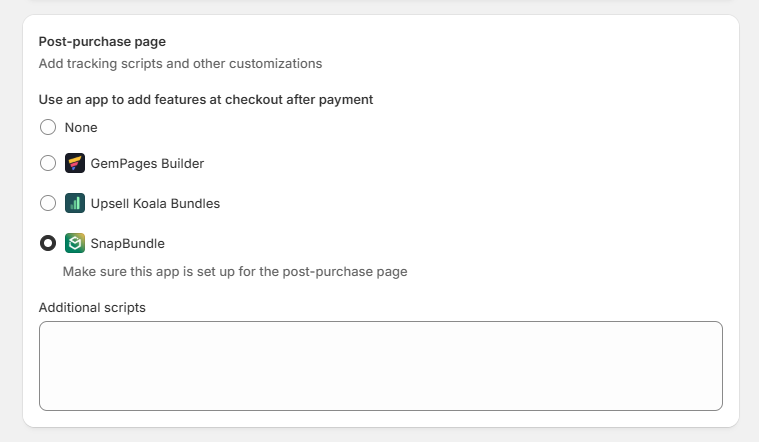
How to create a Post-purchase Offer?
Step 1: Navigate to the Post purchase up-sell in Snap Bundle
Go to the Offer list and choose the Post purchase up-sell offer.
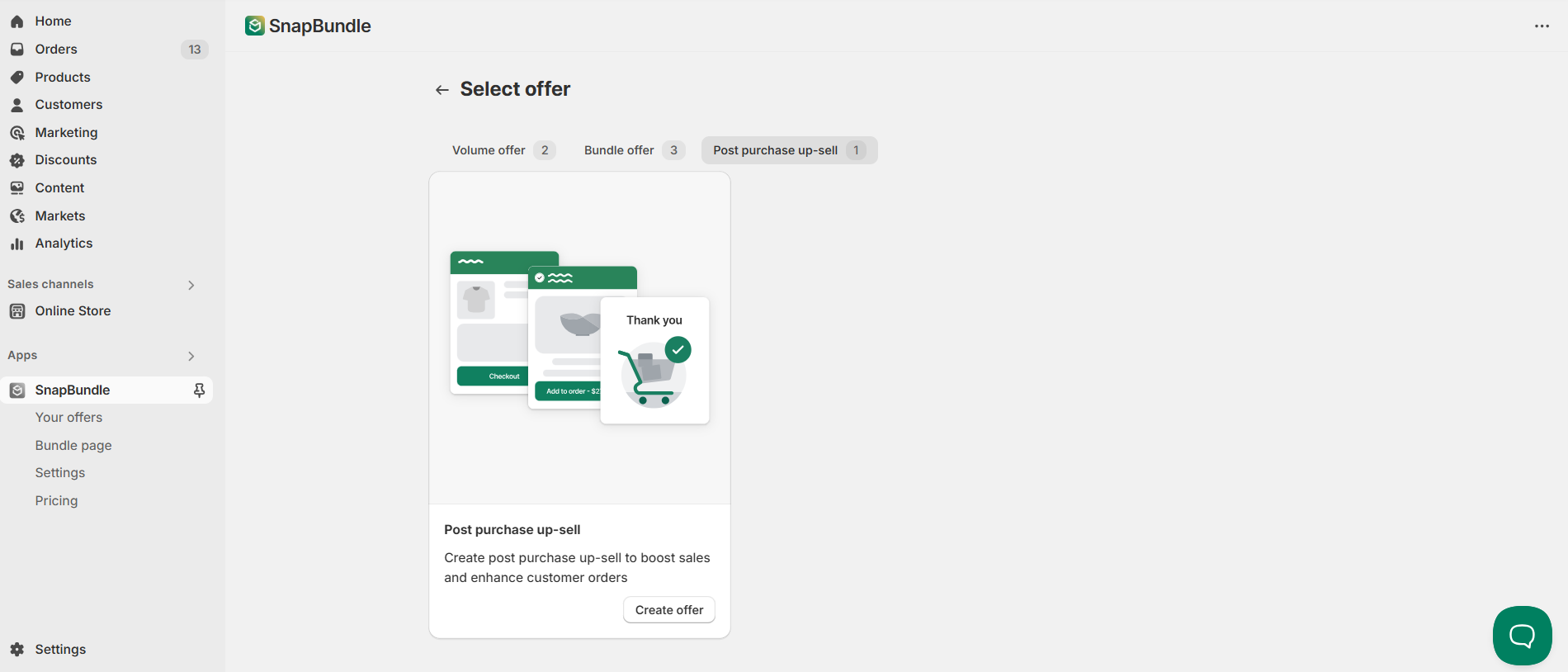
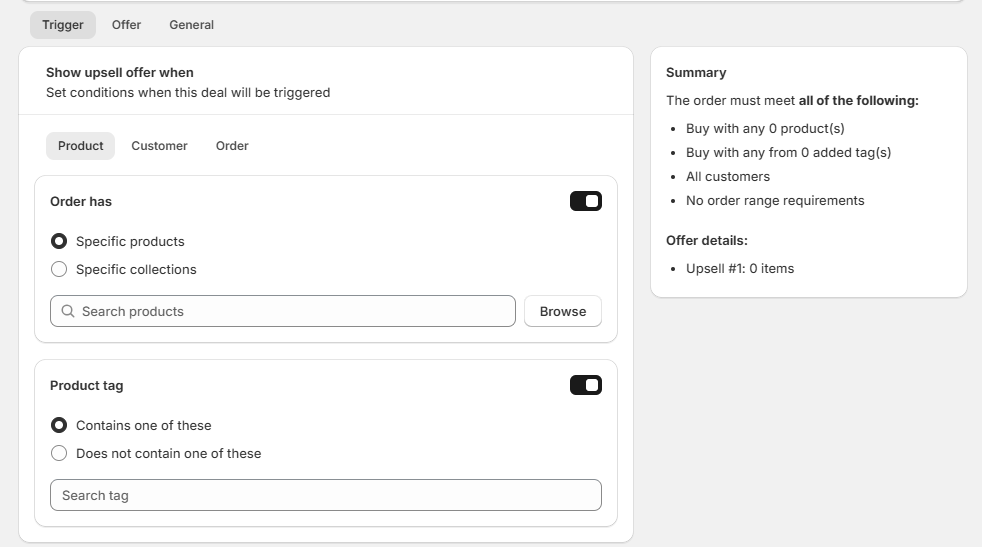
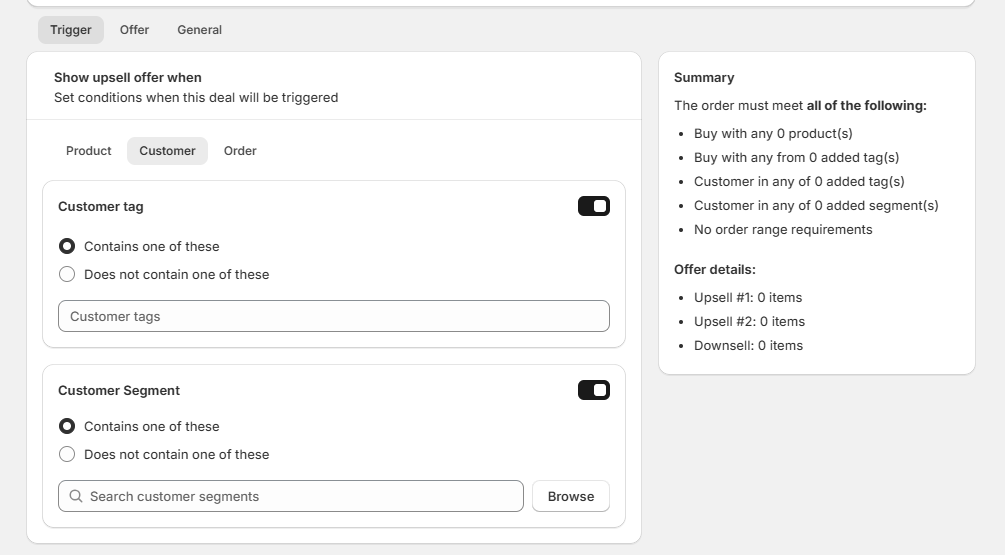
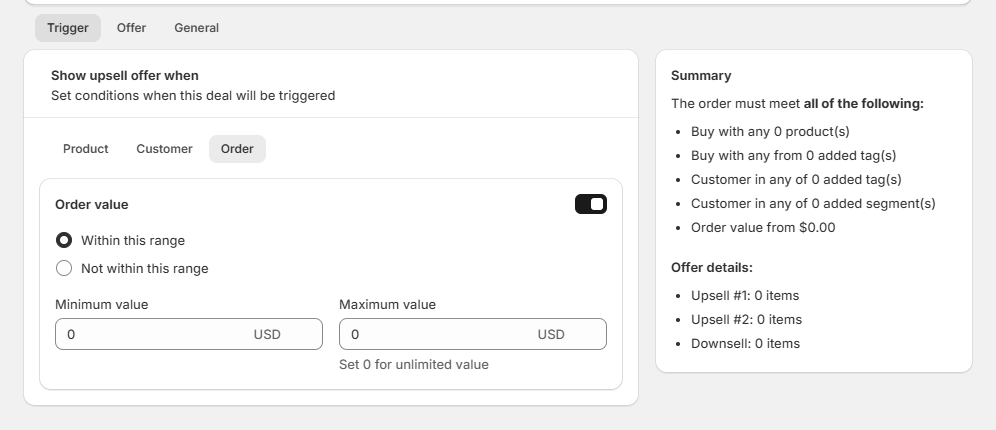
Step 2: Configure Trigger Conditions (Tab: Trigger)
Set conditions when this deal will be triggered, based on Product, Customer, and Order:
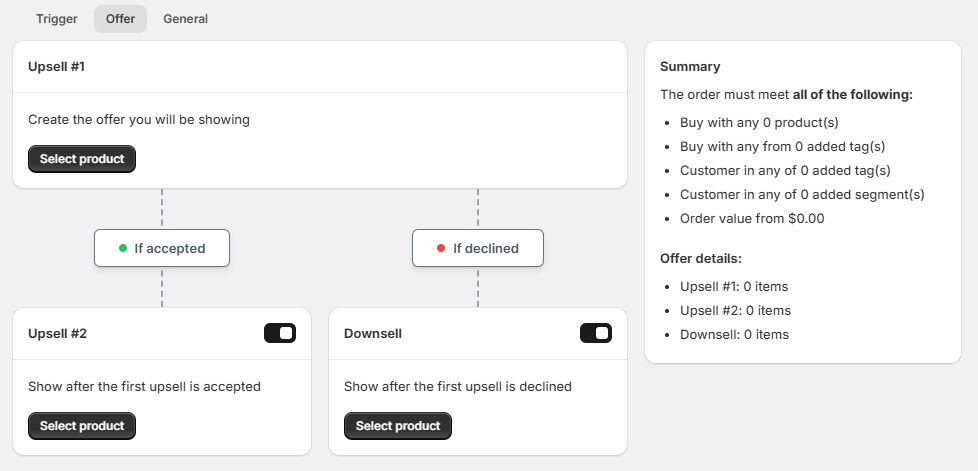
Step 3: Set the Upsell Offer (Tab: Offer )
Choose your Upsell #1 product by clicking Select product.
Optionally add a Downsell or Upsell #2 based on customer behavior.
Kindly note: You can choose only 1 product variant for each upsell/downsell product.
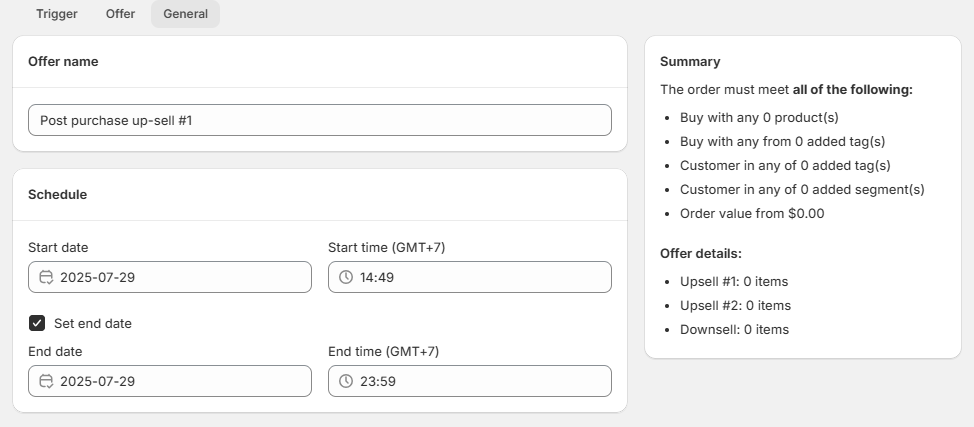
Step 4: Schedule Your Offer (Tab: General )
Give your offer a name (e.g., “Post purchase up-sell #1”).
Set the start date & time.
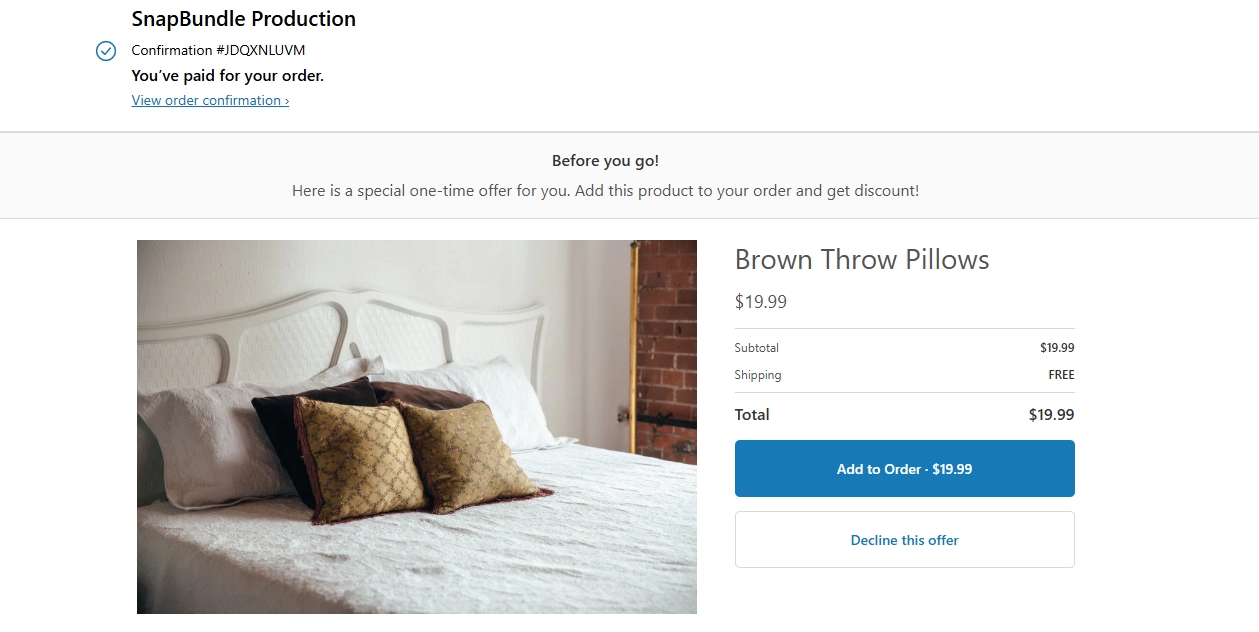
How will it display on the storefront?
Need more help?
If you encounter any issues or have questions, feel free to reach out to our support team via [email protected] or via our live chat - we're happy to help!
FAQ
What is a post-purchase upsell in Snap Bundle?
Why is my Snap Bundle post-purchase offer not showing to customers?
The offer only appears after you select Snap Bundle as your post-purchase app in your Shopify checkout settings. Until you do, the offer is not visible to customers. Open the checkout settings from the warning bar and select Snap Bundle in the Post-purchase page.
How do I create a post-purchase up-sell offer in Snap Bundle?
Go to the Offer list and choose the Post purchase up-sell offer. Then configure the trigger conditions (based on Product, Customer, and Order), set your Upsell #1 product, and schedule the offer with a name and start date and time.
How many product variants can I add to a Snap Bundle post-purchase upsell?
You can choose only 1 product variant for each upsell or downsell product.
Can I add a downsell or a second upsell to my post-purchase offer?
Yes. After choosing your Upsell #1 product, you can optionally add a Downsell or Upsell #2 based on customer behavior.
How do I schedule a Snap Bundle post-purchase up-sell offer?
In the General tab, give your offer a name (for example, "Post purchase up-sell #1") and set the start date and time.
Was this helpful?
Was this helpful?