
SnapBundle's translation feature breaks language barriers by translating your widgets into the languages your store publishes, so you can connect with global customers and boost sales.
Selling internationally easily with translation feature of SnapBundle
Updated last month
Break language barriers and sell internationally with ease! SnapBundle's translation feature empowers your business to connect with global customers and boost sales effortlessly.
Use case:
My store is selling in the US and EU (France and Spain), having 3 languages: English, French and Spanish. The widgets should change language according to the store's language selector.
Step 1: Publish all available language(s) from your Shopify store
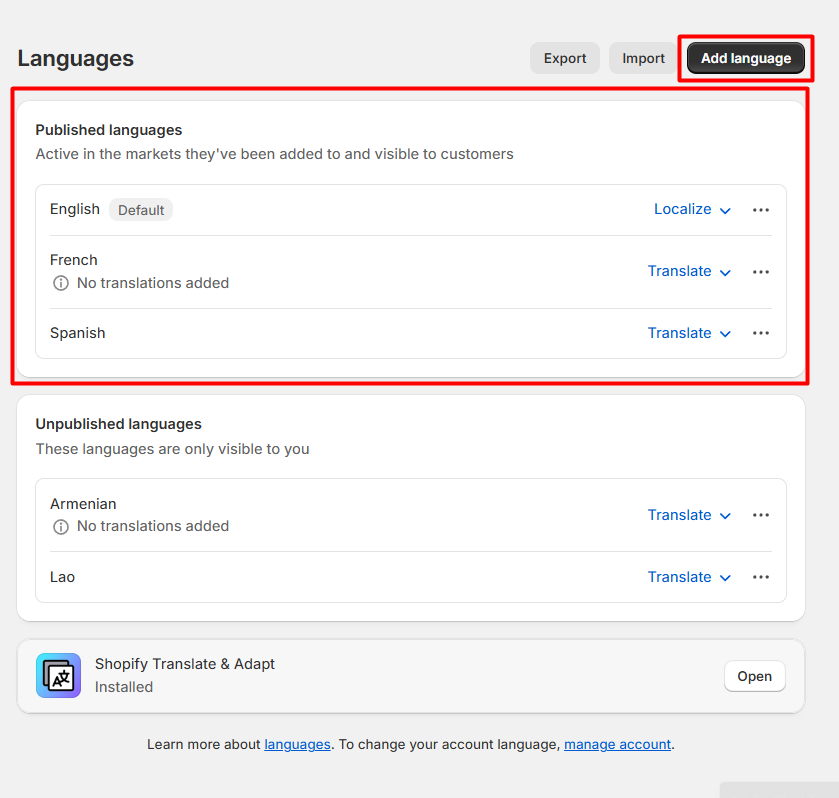
For this case, I have 3 languages: English, French and Spanish. I will add these languages into my Shopify store through Shopify admin. To do this: Go to Settings >> Languages >> Add and Publish English, French and Spanish
Make sure 3 languages are published successfully. Read more about Managing languages on Shopify.
Step 2: From the navigation menu on the left side, choose the "Settings" to customize the widget of your choice
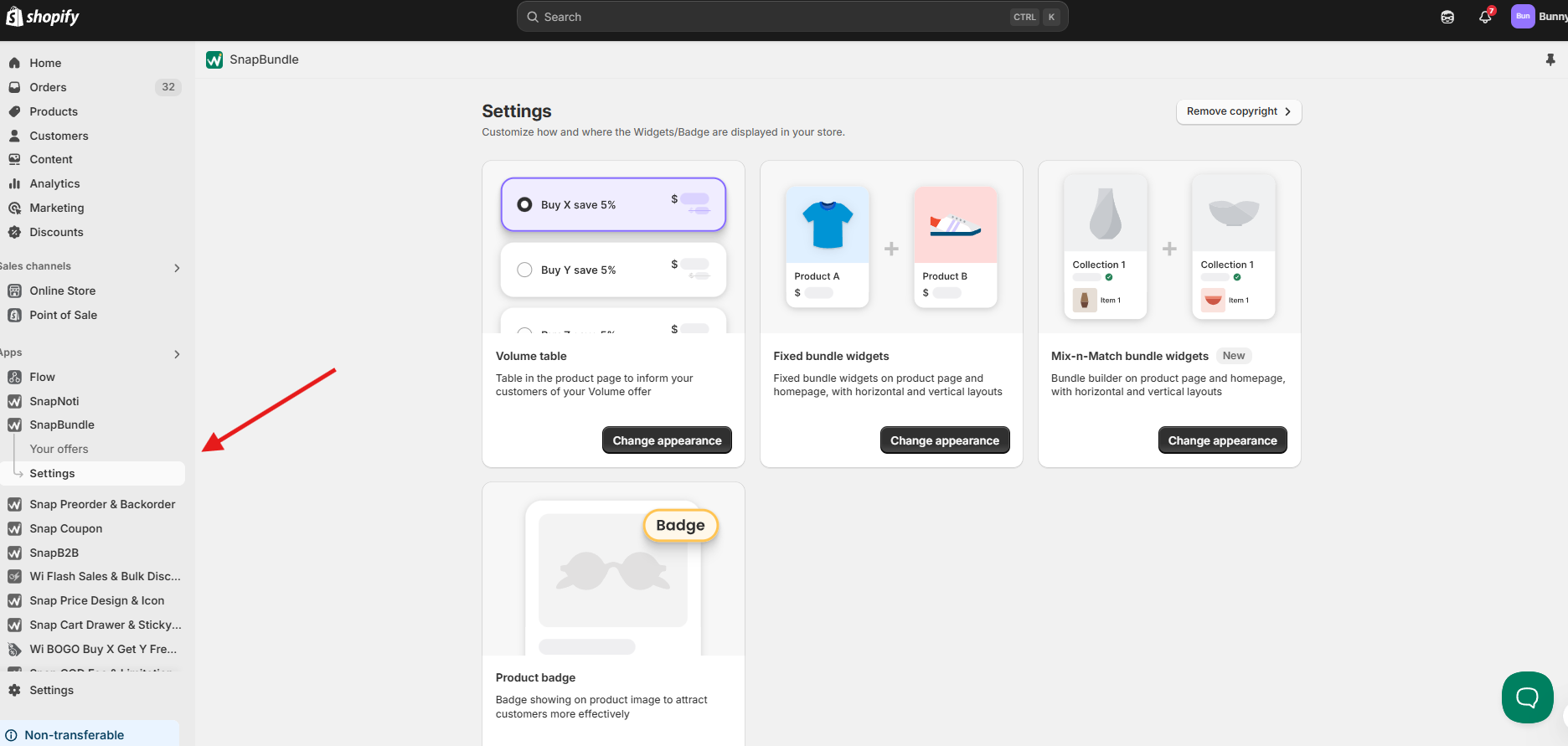
On the setting page, choose the widget you would like to translate. In this case, I will choose the "Volume table"
Step 3: Translate your Volume table
Go to translation section, at the bottom of the setting page In the Text & Translation section. Add all the languages you would like to be translated into here. The dropdown will show all your published languages in Shopify admin to choose. The default language is English in this case, as per your setup.
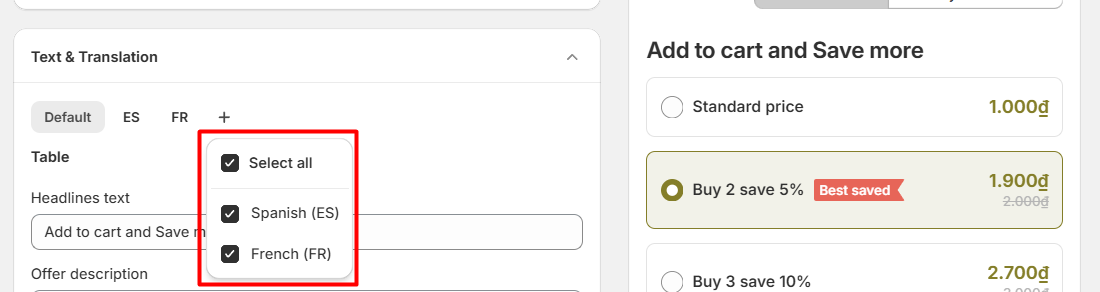
We support auto translate for most of popular languages, but you can adjust the contents as wished for more precision.
If you don't set a translation for one any published language, the default content will be applied.
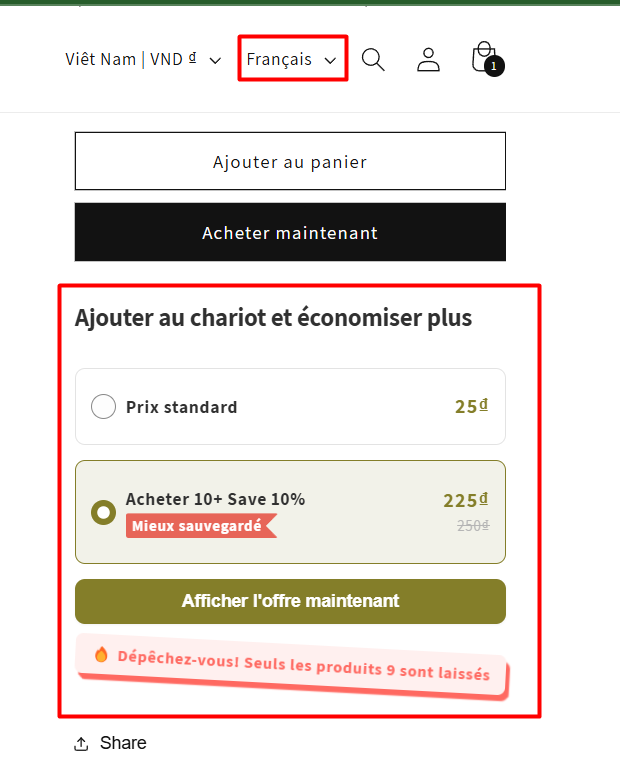
Step 4: Check the translation on your storefront
After setup, when your customers choose different language, our table will update accordingly:
Need more help?
If you experience any issues or have questions, please don't hesitate to contact our support team at [email protected] or through our live chat - we're here to assist you!
FAQ
How do I sell internationally with SnapBundle's translation feature?
Which languages does SnapBundle support for auto translation?
SnapBundle supports auto translate for most popular languages, and you can adjust the translated content manually for more precision.
How do I add languages to my Shopify store for SnapBundle translation?
In Shopify admin, go to Settings >> Languages >> Add and Publish the languages you want, such as English, French, and Spanish. Make sure all of them are published successfully.
How do I translate a SnapBundle widget like the Volume table?
From the navigation menu, choose Settings and select the widget you want to translate. In the Text & Translation section at the bottom of the page, add all the languages you want translated into. The dropdown shows all your published Shopify languages, and the default language is English.
What happens if I don't set a translation for a published language in SnapBundle?
If you don't set a translation for any published language, the default content is applied.
How do I check that my SnapBundle widget translation works on my storefront?
After setup, when your customers choose a different language, the widget updates accordingly to match the store's language selector.
Was this helpful?
Was this helpful?